
FluidityIQ platform Quick Reference guide
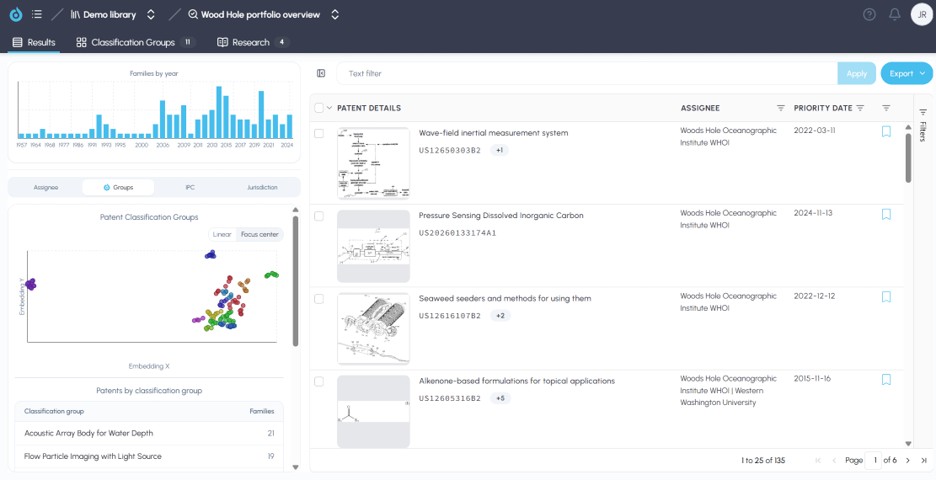
Combining a powerful semantic engine with deep research agents
An overview of the main features and functionality of FluidityIQ
FluidityIQ is the most flexible patent intelligence product available in the market today. It is built around the concept of a Private Innovation Library that allows customers to securely build a corpus of knowledge using our powerful semantic engine. This enables customers to develop context on an ongoing basis and can support a variety of critical functions including: research and discovery, freedom-to-operate, invalidity analysis, novelty analysis, white space analysis, commercialization and more.
This Quick Start Guide provides high-level guidance to help users get the most out of the platform. This guide may link you to deeper support articles in order to avoid repetition. More helpful information can be found by visiting the Learning Center by clicking on the “question mark” icon in the upper right of the screen once logged in.
Click here to visit the Learning Center now, where you will also find this Quick Start guide.
Create a Private Innovation Library
A Private Innovation Library (“PIL” or “library”) is the main hub of your activities in the FluidityIQ platform. The library will help users organize their data and projects as well as build context in an innovation area or areas for future use of collaboration with different team members.
Within a library, users may create and maintain multiple patent searches, securely upload critical documents and manage their entire patent portfolio. Each library may have multiple searches associated with it. Each search will include detailed results, a Deep Research Agent to support dynamic analysis of a patent corpus, embedded analytics, filtering and more.
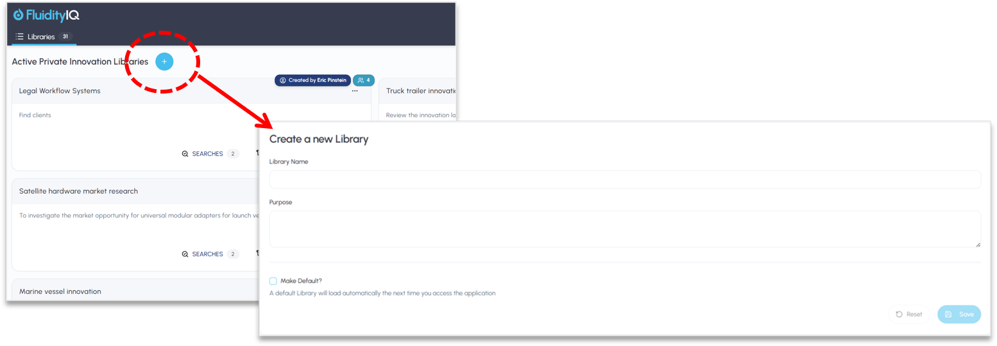
Private Innovation Libraries organize work and build context
Clicking on the blue plus sign in the upper right will open a page to Create a new Library. A library only requires a name and description. You may also make a library your default library by clicking on the checkbox in the lower lefthand corner. If a default library has been set, then it will be open immediately upon logging into the platform.
Once you have created one or more libraries, these will all be rendered as tiles with the title and description for each when you login. Clicking on a tile will expose the library’s searches and more.
The libraries are rendered in the order they are created, unless a default library is set. You may archive libraries by clicking on the icon on the bottom of the page (see below). Archived libraries may be accessed by clicking on the same icon again.
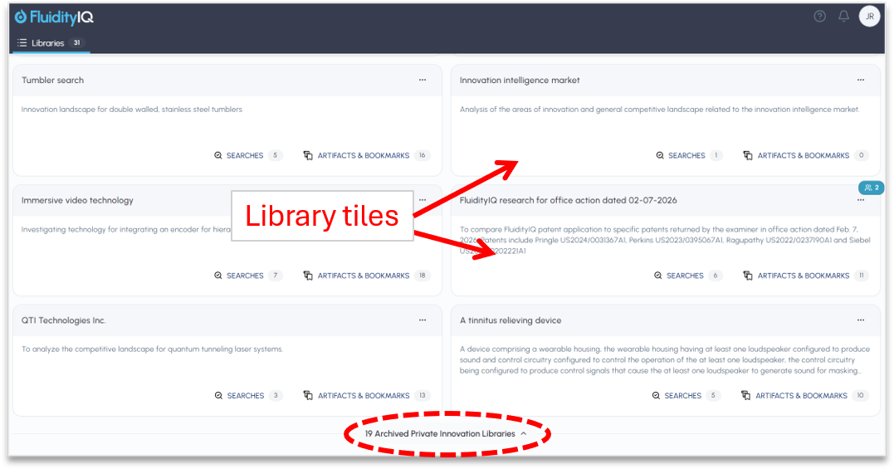
Libraries can be shared or archived securely
Clicking on the three dots in the upper right of any library tile will open a menu that will enable you to mark a library as your default library, archive the library, edit the library, delete the library or share the library with other team members. While the creator of any library may share the library, only the creator may archive or delete a library. All team members with access to a shared library have the same rights to edit or add context (such as through new searches) to the library while only the creator may share, delete or archive a library.
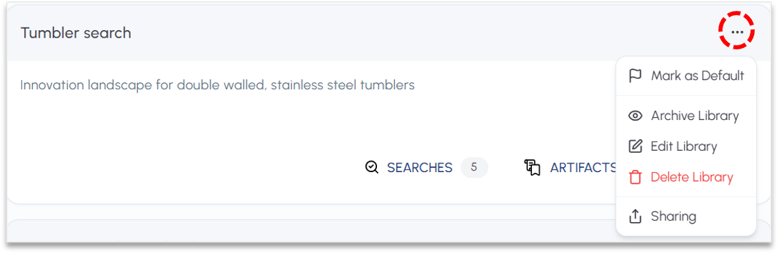
Libraries may be shared to enhance collaboration
Patent searching and portfolio analytics
As stated earlier, each library may have multiple searches or analyses associated with it. New searches or analyses are created by clicking on the blue plus sign from within a library. There are three ways to build a corpus for analysis as follows:
Utility search – A semantic search of our database of +185 million patents. See here for more details.
Design patents – An image based or text-based search of our database of +40 million global designs. See here for more details.
Portfolio analysis – Upload or key enter a list of patent IDs or create a portfolio through assignee filtering. See here for more details.
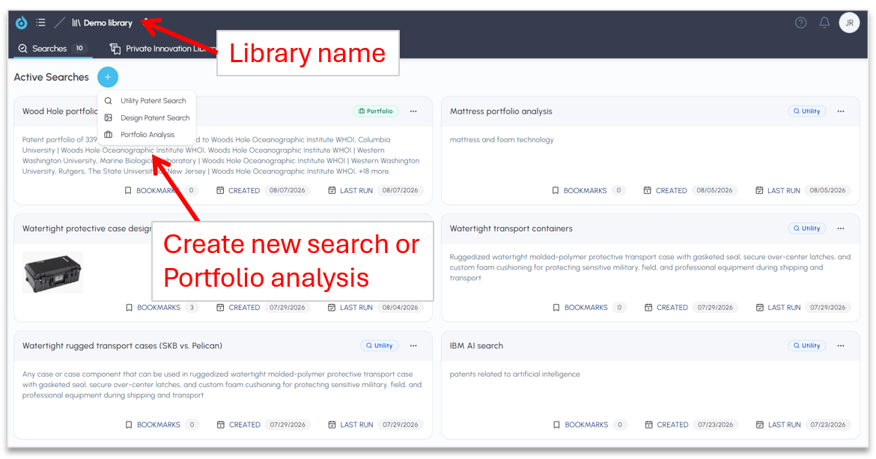
One platform can serve all searching and portfolio needs
Classification groups for technology clusters
FluidityIQ uses a unique toponymical model to identify and create technology sub-clusters for every search and every portfolio created. These sub-clusters are based on the underlying technology topics covered in all of the patents of a particular portfolio or search. Each sub-cluster is created with each new or refreshed search or portfolio.
This simplifies the process of understanding the makeup of a portfolio or the areas of depth within a search corpus and is very useful in white space analysis, setting strategy and generally understanding the density of prior art in a technology area.
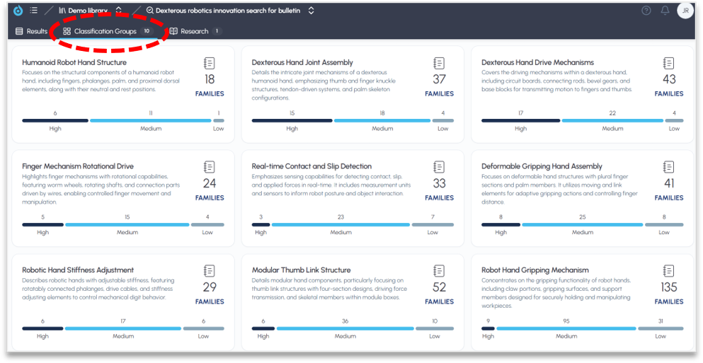
Dynamic sub-cluster analysis aides in portfolio analysis
A summary of the technology sub-clusters, called Group Classifications, can be found by clicking on the Group Classification tab at the top of the Results page. Each sub-cluster is represented by a descriptive tile. Each sub-cluster result details can be accessed by clicking on the tile itself.
The sub-clusters are also visible in the embedded analytics on the Results page. Patent results may be filtered by either clicking on the sub-cluster name or on the color-coded dots within the scatter diagram.
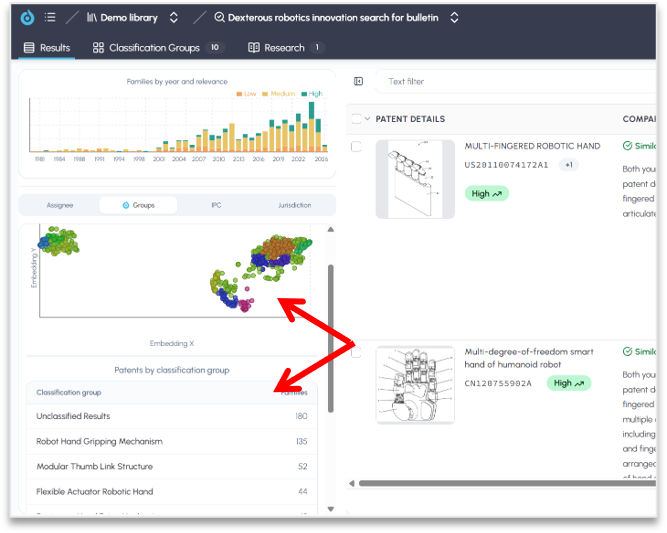
Sub-cluster filtering can be combined with other filters
Sorting and filters
Sorting and filtering search results can be done in a variety of ways from the Results page. You may sort using embedded analytics, using the header controls in the results table, by key words or phrases, or by opening the Filter slider on the righthand side of the screen to expose more filter options.
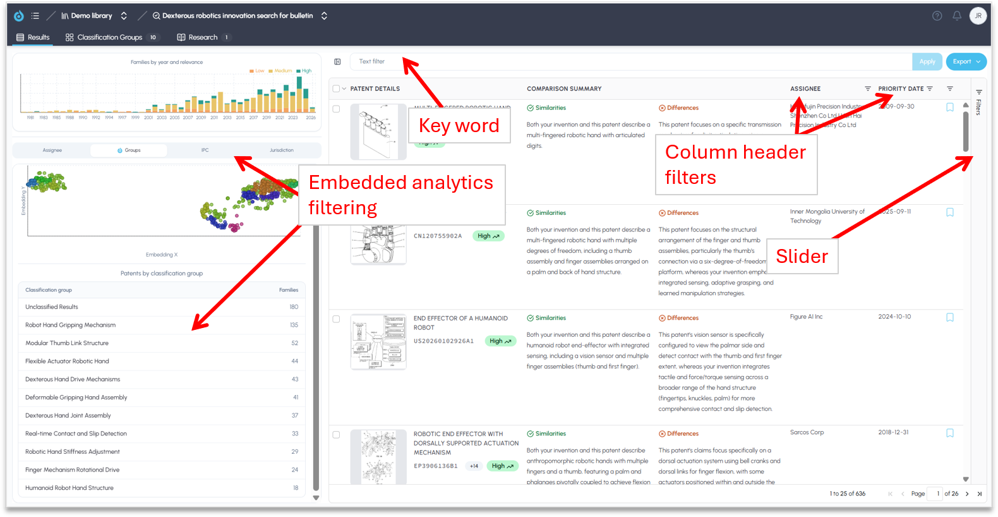
A variety of options for filtering results
The Filter slider when open enables filtering by assignee, priority date, bookmarks, jurisdiction, classification group, IPC/CPC codes, publication type, legal status and similarity score.
Viewing patent details
Patent details can be viewed from the Results page by clicking on the patent ID within the Results page. This will launch the Patent Details slider from the righthand side of the screen and expose the content and bibliographic data for a patent.
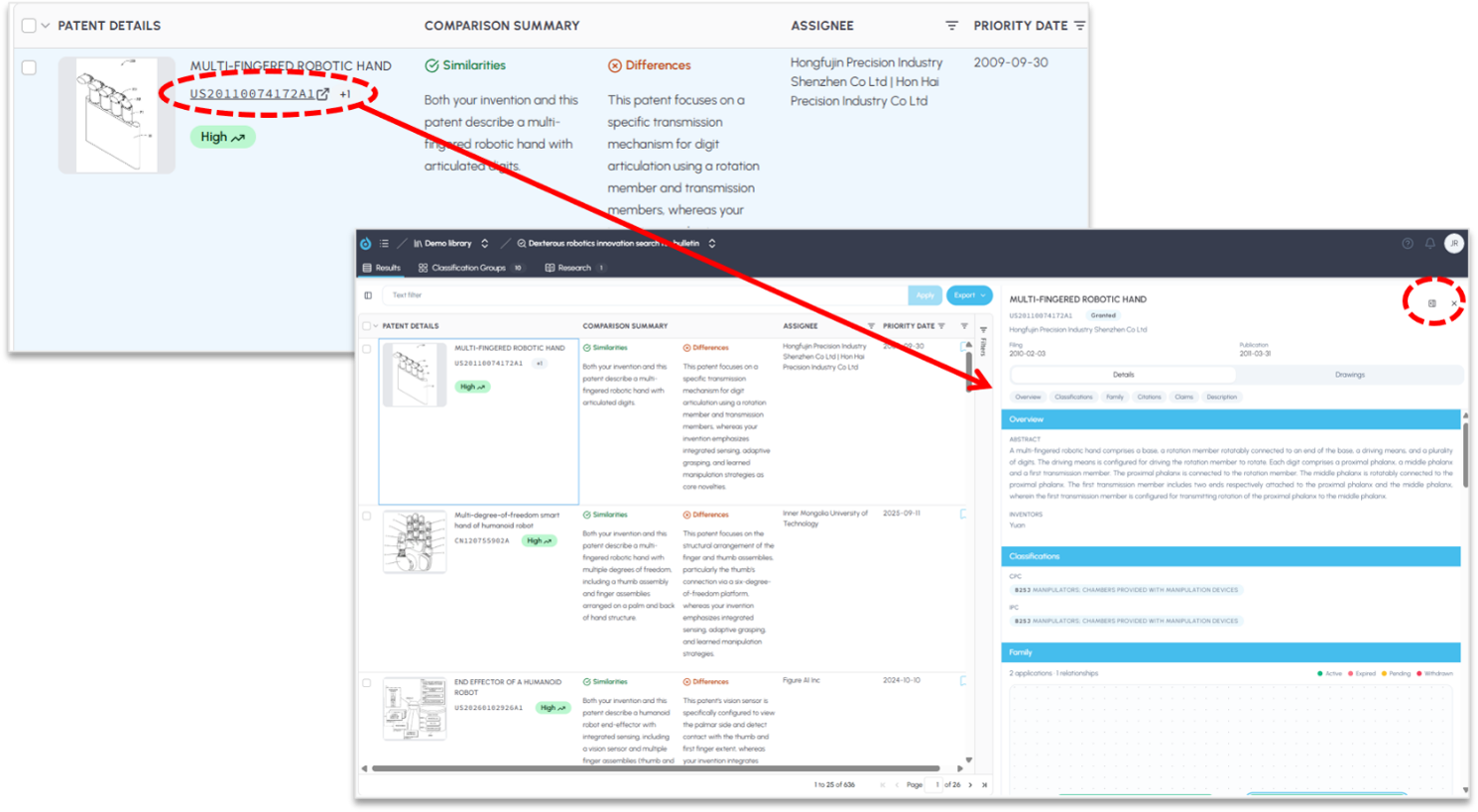
Access similarity analysis, citations, bibliographic data and more
The patent details can be popped open into a different window for easier review by clicking on the icon in the upper righthand corner (above). In addition to the header information for each patent this will expose the patent overview, classification details, family structure, citations, individual claims and the patent description.
Using the Deep Research Agent
FluidityIQ's Deep Research Agent transforms a set of patent search results into a working research environment where users can interrogate a curated corpus of patents, draw on the full breadth of academic literature, and generate structured, citable reports through natural conversation. Whether you are conducting a novelty assessment, mapping a competitive landscape, or exploring the academic foundations of emerging technologies, the agent gives you a research partner that works at the speed of your questions.
The learn more about the specifics of using the Deep Research Agent, click here.
Exporting data and formatted reports
FluidityIQ enables a variety of ways to export data and reports to suit customer needs. This includes the ability to copy text or launch a formatted PDF report within the Deep Research Agent or DRA view (below, left) or using the export function on the Results page (below, right).
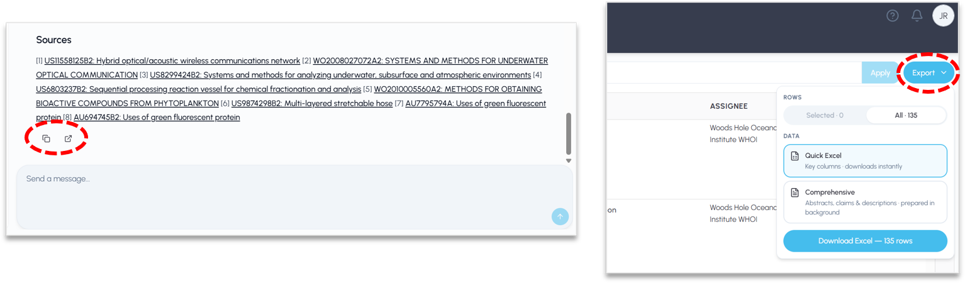
Copy text, formatted reports and exporting options abound
The export feature on the Results page provides you with two options, a quick excel export of key fields, or a denser comprehensive export that includes descriptive data, claims etc. The comprehensive export can be formatted as CSV, JSONL or TOON to accommodate various use cases.
Please reach out to support@fluidityiq.com for more assistance on using the portfolio analytics features of FluidityIQ.